

Guide to Using HubSpot Live Chat Handoff in Expertisei Chatbot
1. Log into the Dashboard 0:00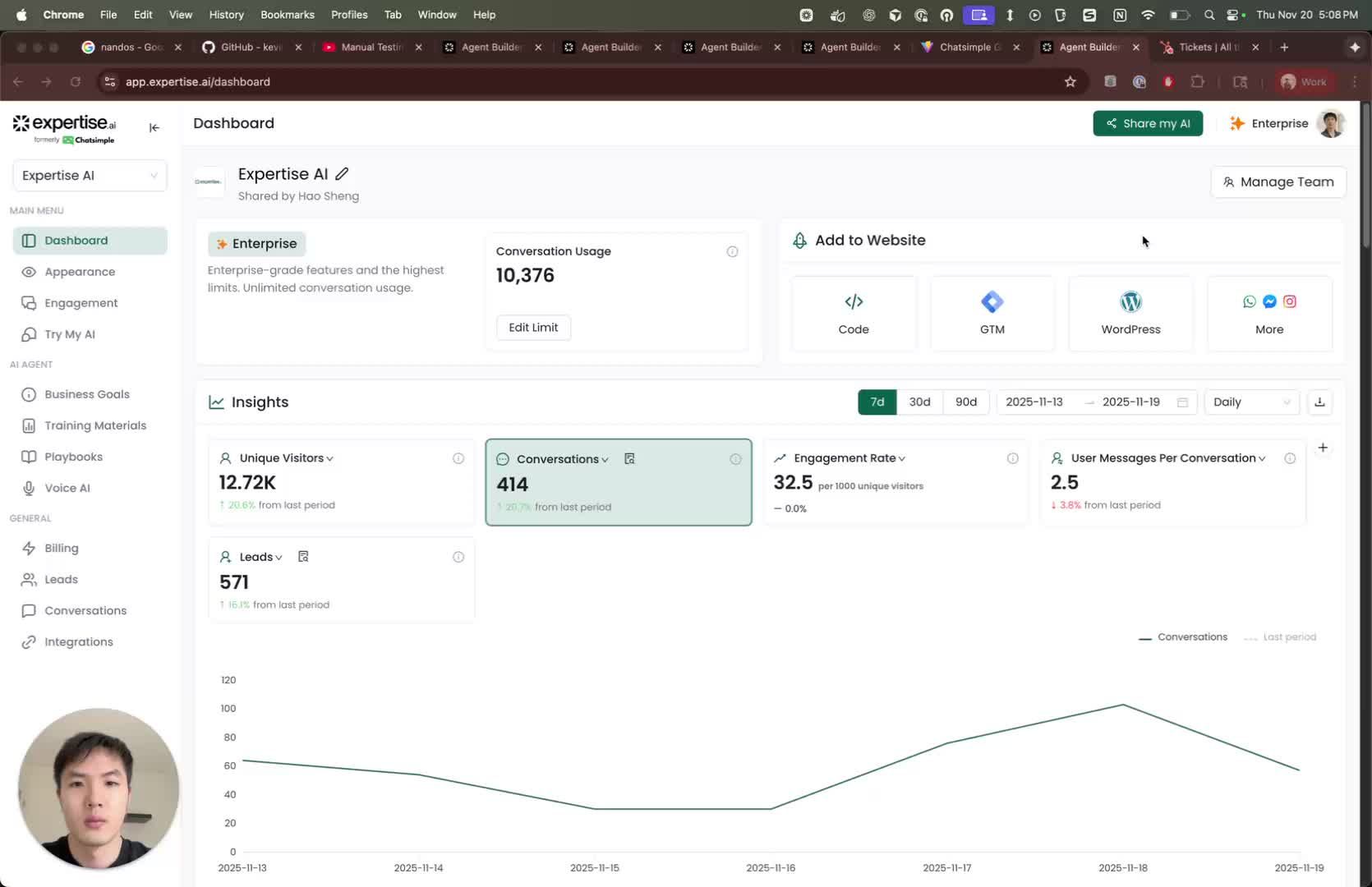
- Start by logging into the Expertiseidashboard.
- Navigate to the playbooks page. 2. Create a Playbook 0:15
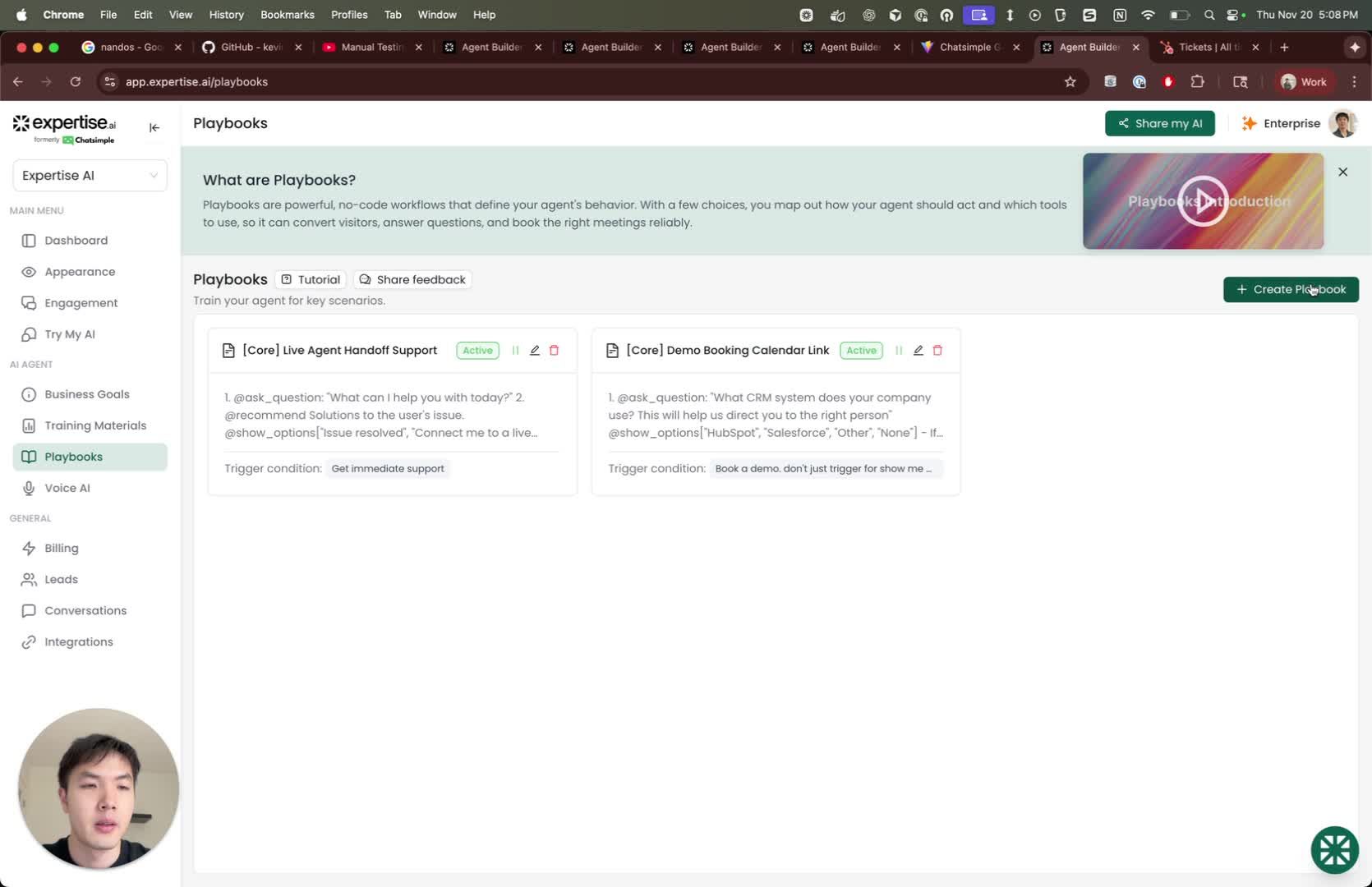
- Click on ‘Create a playbook’.
- Choose ‘Quick setup’ and select ‘Live chat handoff’.
- Click ‘Continue’. 3. Configure Active Hours 0:30
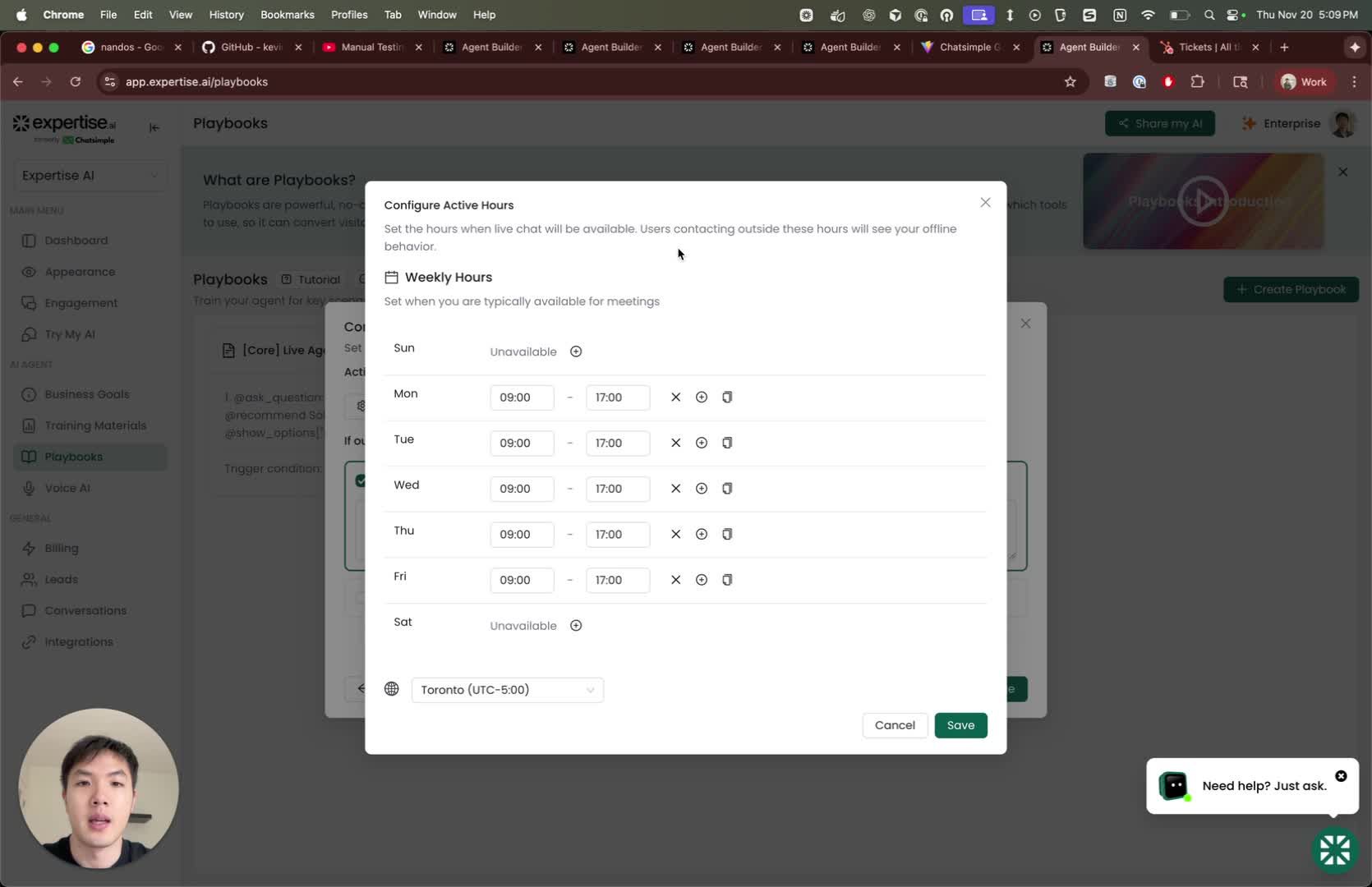
- Set the active hours for live chat availability.
- This defines when visitors can initiate a HubSpot live chat handoff. 4. Define Offline Behavior 0:52
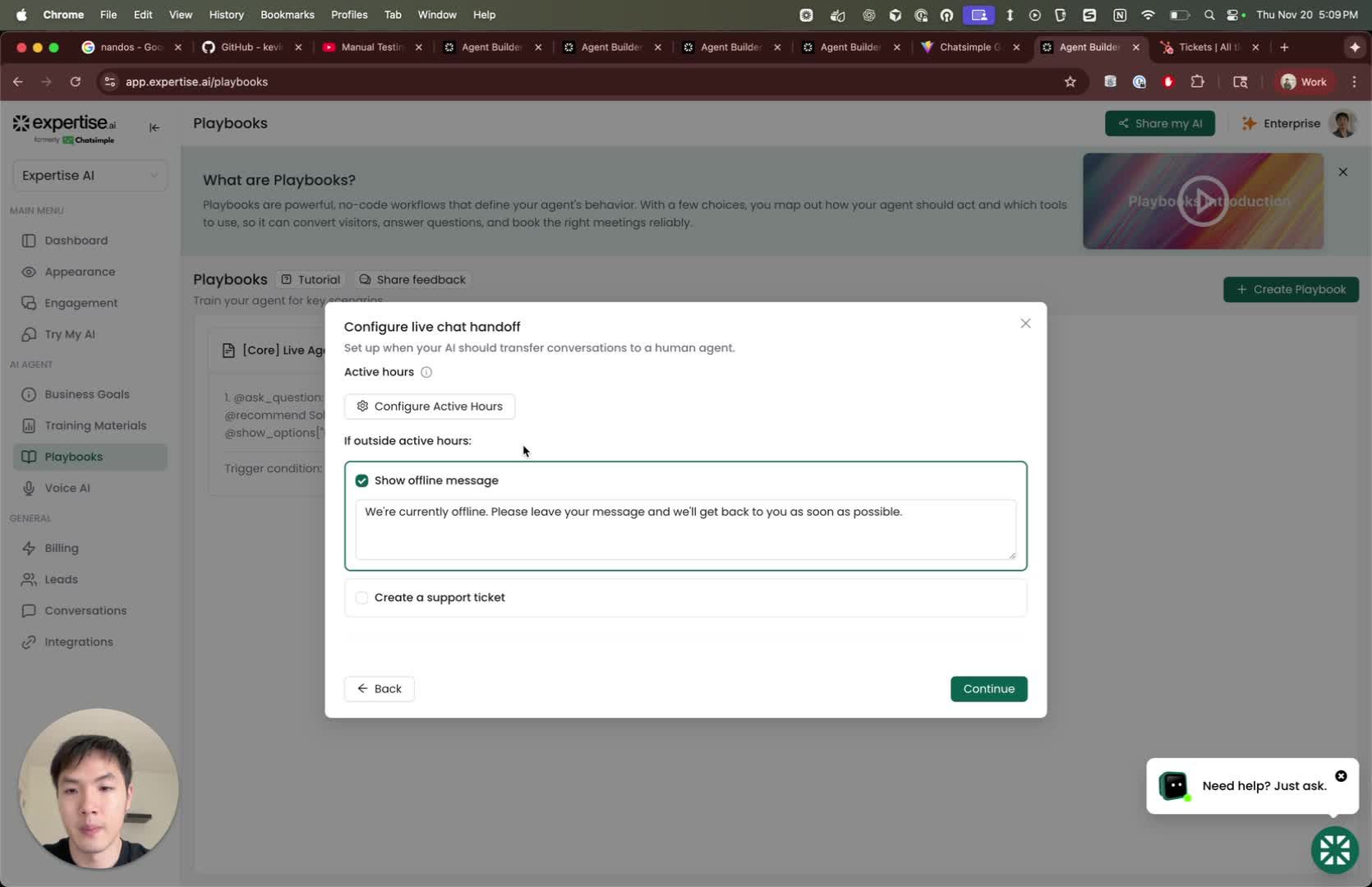
- Choose the behavior of the chatbot outside of active hours:
- Option 1: Send an offline message to visitors.
- Option 2: Create a support ticket in HubSpot ticket pipeline. 5. Set Up Ticket Pipeline 1:13
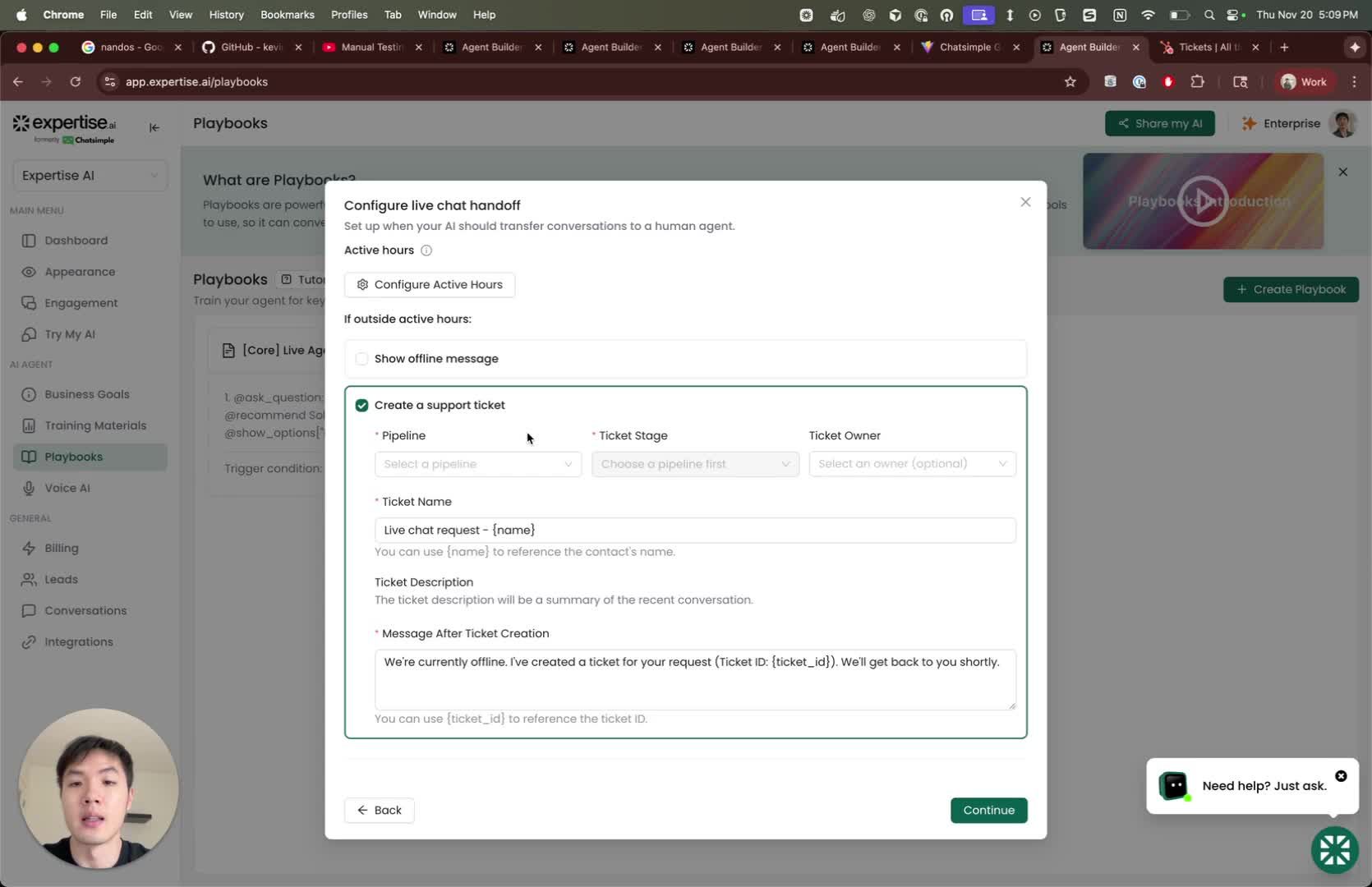
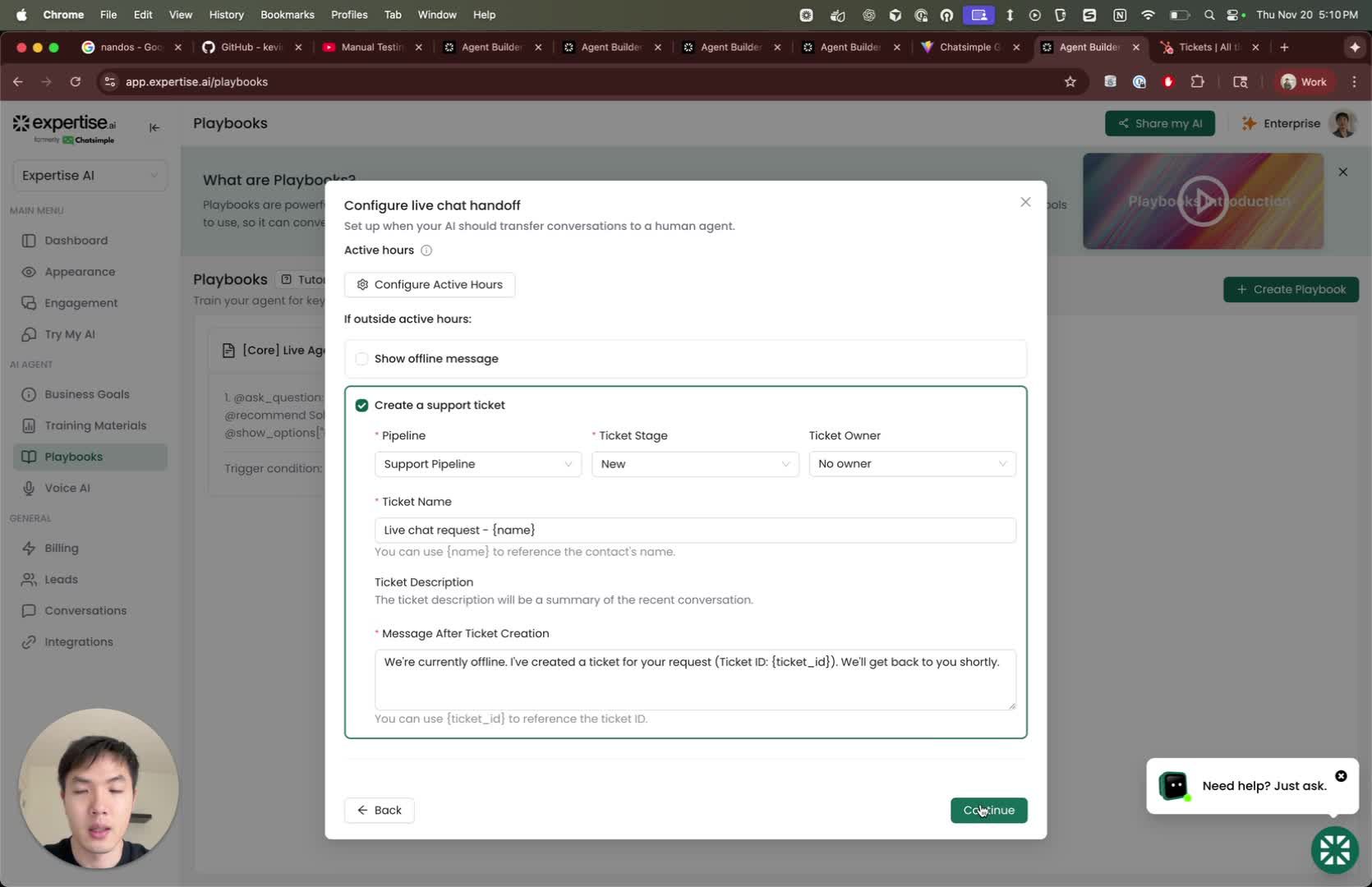
- Select the ticket pipeline and ticket stage.
- Assign a ticket owner.
- Customize the ticket name and confirmation message for visitors. 6. Add Trigger Phrases 1:41
- Optionally add trigger phrases for the chatbot to recognize.
- For testing purposes, you can skip this step. 7. Test the Playbook 2:05
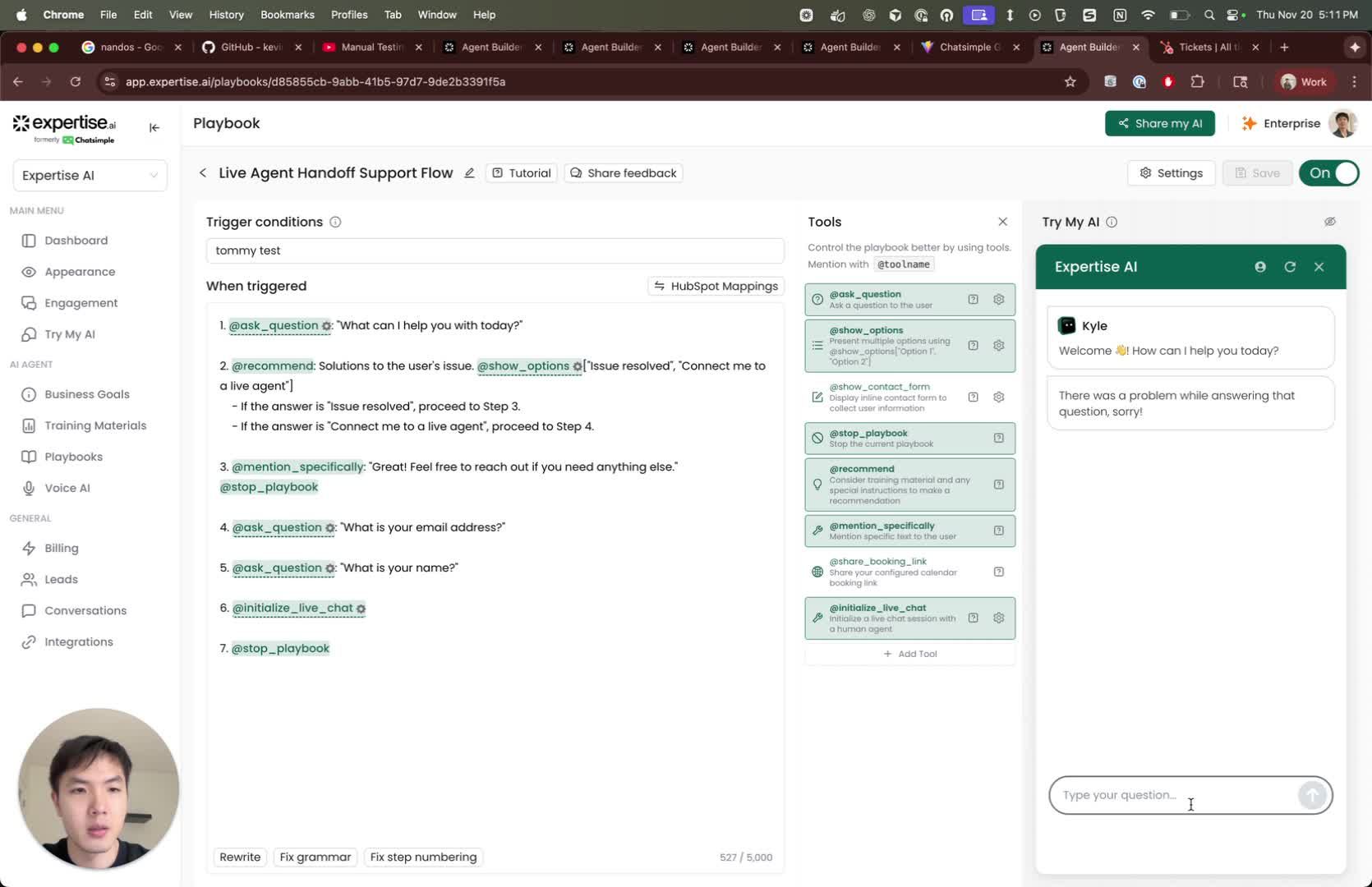
- Confirm that the playbook has been created successfully.
- Test the live chat handoff. 8. Handle Outside Active Hours 2:42
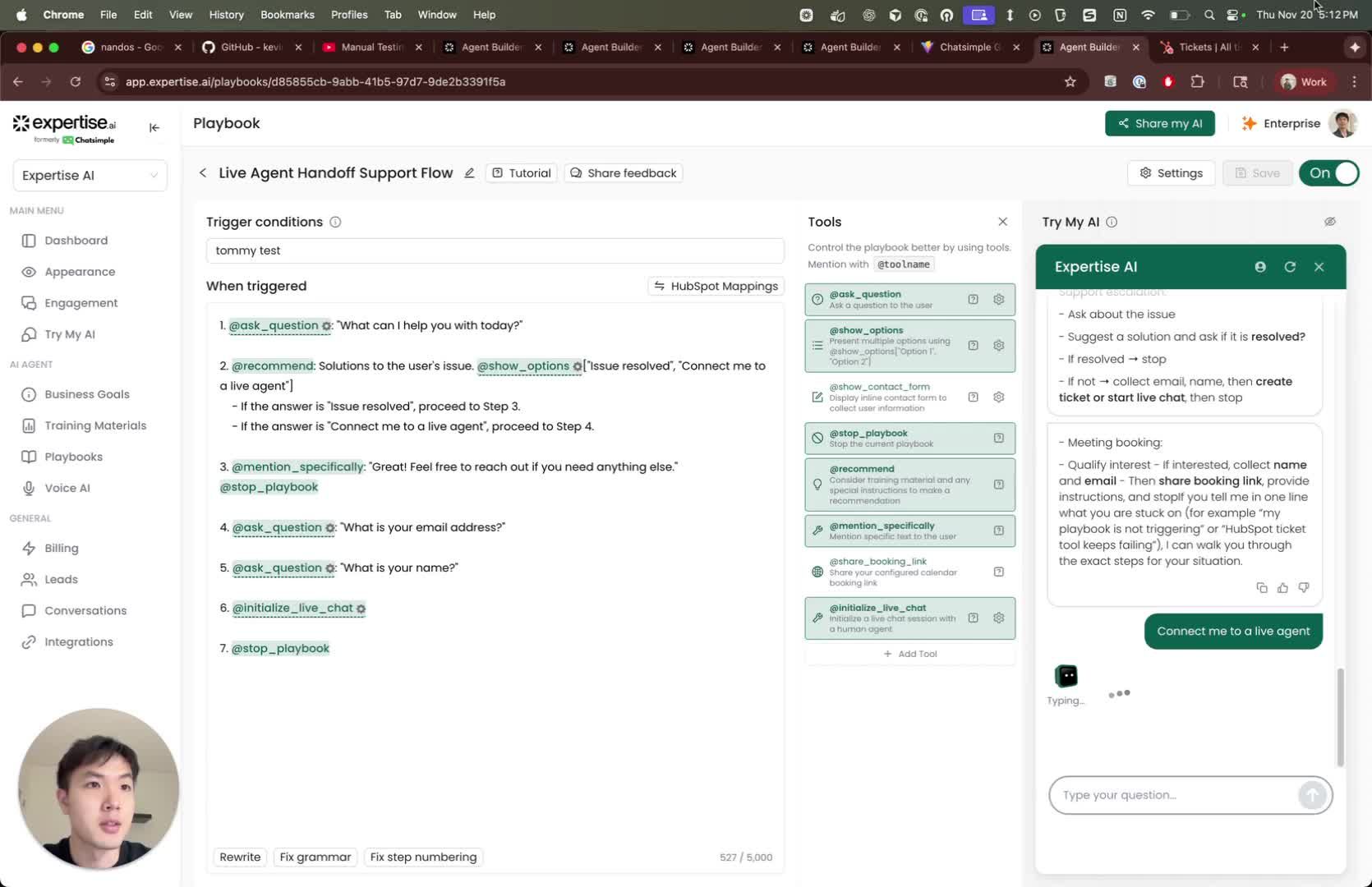
- If a visitor tries to connect outside of active hours, prompt for their email and context name.
- Generate a support ticket with the visitor’s information. 9. Handle Within Active Hours 3:37
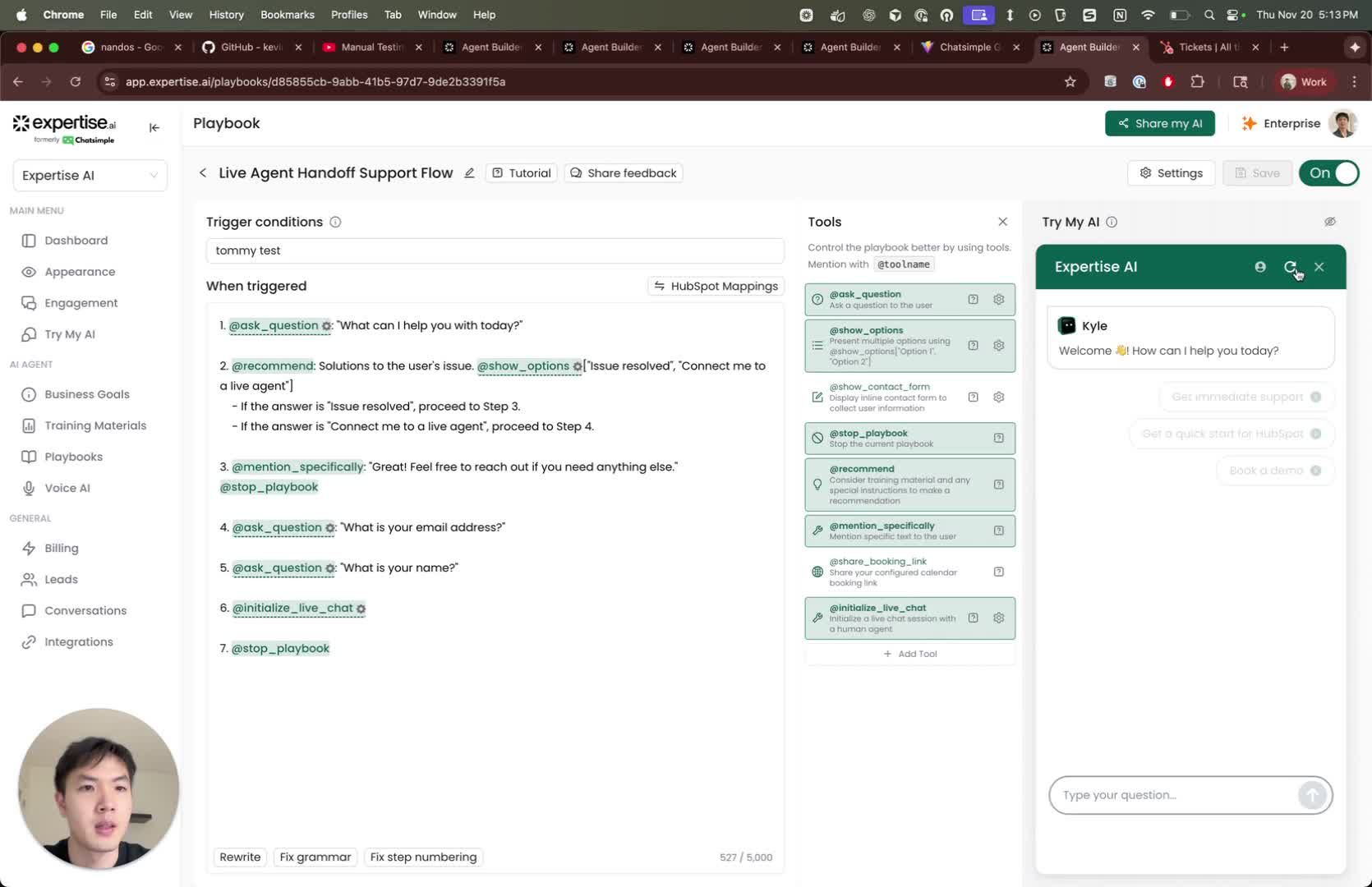
- If a visitor connects during active hours, allow them to initiate a live chat with an agent.
- Confirm the live chat has been initialized.
- Getting HubSpot Notifications in Slack