

Install Expertise on General Websites
Welcome to the Expertise installation guide! Follow these step-by-step instructions to seamlessly integrate our chatbot into your website. Whether you’re using plain HTML or popular frameworks like React.js and Next.js, we have you covered! Video Tutorial Video tutorial on how to install Expertise widget on your website
Step 1: Access Your Dashboard
Visit the Expertise Dashboard to find the unique script for embedding the chatbot on your site.
Step 2: Locate and Copy the Code
In the “Add to Website” section of the dashboard, click the “Copy” button to copy the script to your clipboard.
 Step 3: Find the Appropriate File for Your Website
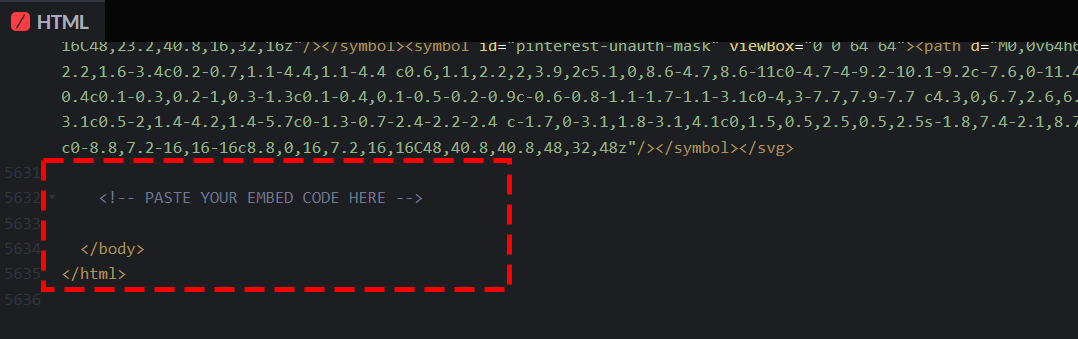
- For General HTML Websites: Paste the code before the closing
</body>tag in your main HTML file. - For React.js: Add the script inside the
public/index.htmlfile, just before the closing</body>tag. - For Next.js: Create a
_document.jsfile inside yourpagesfolder, and include the script before the closing</body>tag.
</body> tag.
Note: If you want your chatbot to appear on specific pages, then include the script only in the files that correspond to those pages.
Step 4: Insert the Code
Paste the copied code in the appropriate place as per your website type, as mentioned in Step 3.
 Step 5: Verify the Installation
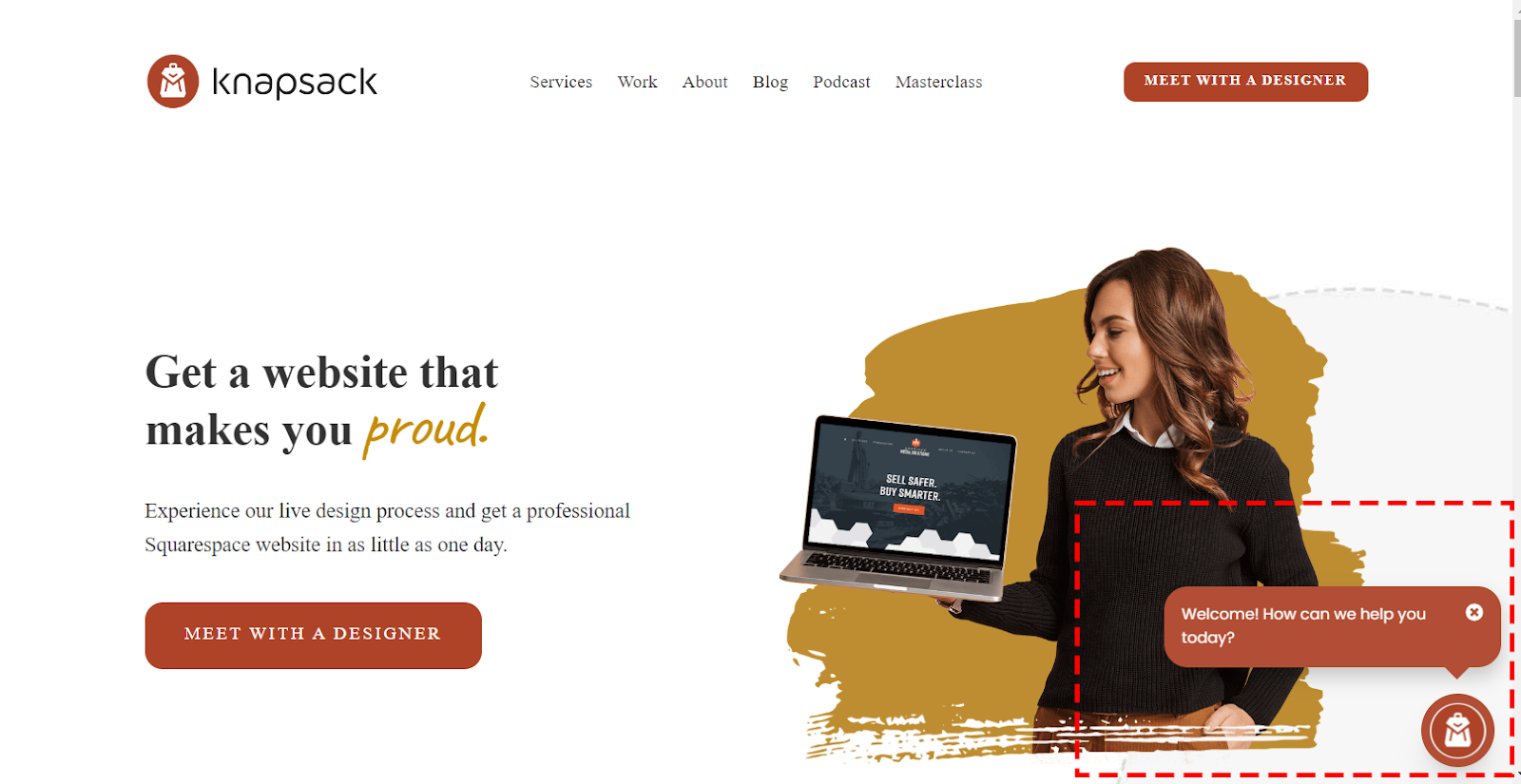
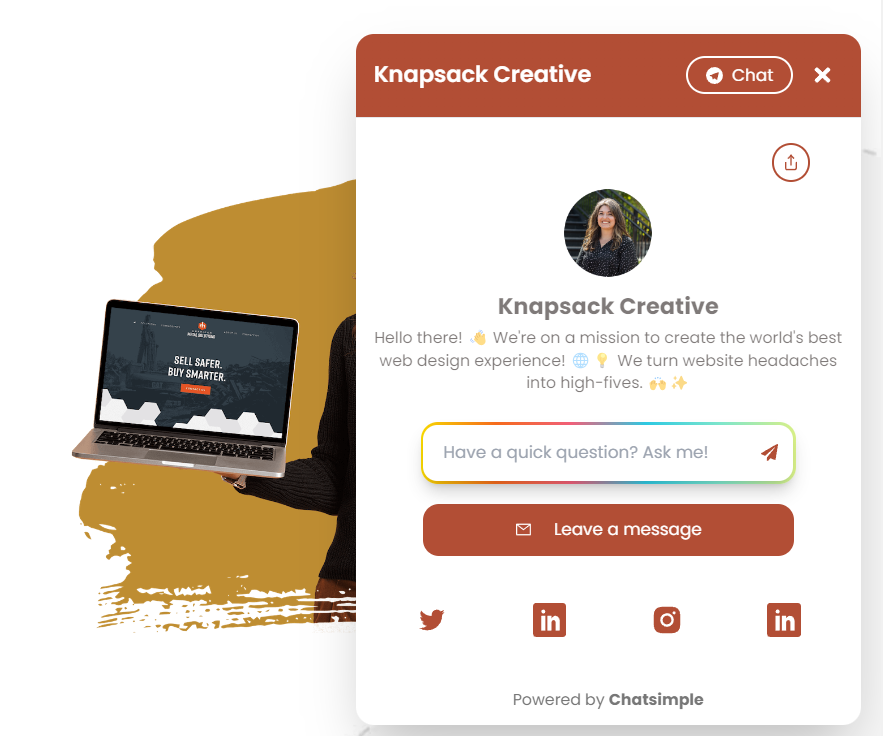
Save your changes, and refresh your website to ensure the Expertise widget appears correctly.
Step 5: Verify the Installation
Save your changes, and refresh your website to ensure the Expertise widget appears correctly.
 Enjoy your chatbot!
Congratulations! Expertise is now part of your website, ready to provide a delightful experience to your visitors 24/7.
Enjoy your chatbot!
Congratulations! Expertise is now part of your website, ready to provide a delightful experience to your visitors 24/7.